The One Drive Folder Structure Your Accountant Actually Wants
It's March. Your accountant emails: "Send me your receipts."
You open Drive. You have a folder called Receipts. Inside it, 847 PDFs. Names like invoice.pdf, invoice (1).pdf, invoice-2024-final-FINAL.pdf. Some have dates. Most don't. Some are duplicates. You're not sure which.
You attach the whole folder. You click send. You hold your breath.
Three days later your accountant replies: "Can you organize these by year and vendor? I can't tell which Stripe invoice goes with which year."
You sigh. You spend a Saturday renaming files.
This entire scenario is avoidable. There is exactly one folder structure your accountant wants, and it is boring.
Table of Contents
- What CPAs actually ask for
- Why vendor-grouping wins
- The structure most freelancers actually have
- The structure that wins
- What AutoFileEmail produces
- The cross-reference moment
- When the structure breaks down
- What your CPA does NOT want
- How to get there from here
- The bottom line
What CPAs actually ask for
I asked four. Three solo CPAs and one mid-sized firm partner. The answers were nearly identical.
When you hand over a Drive folder, they want:
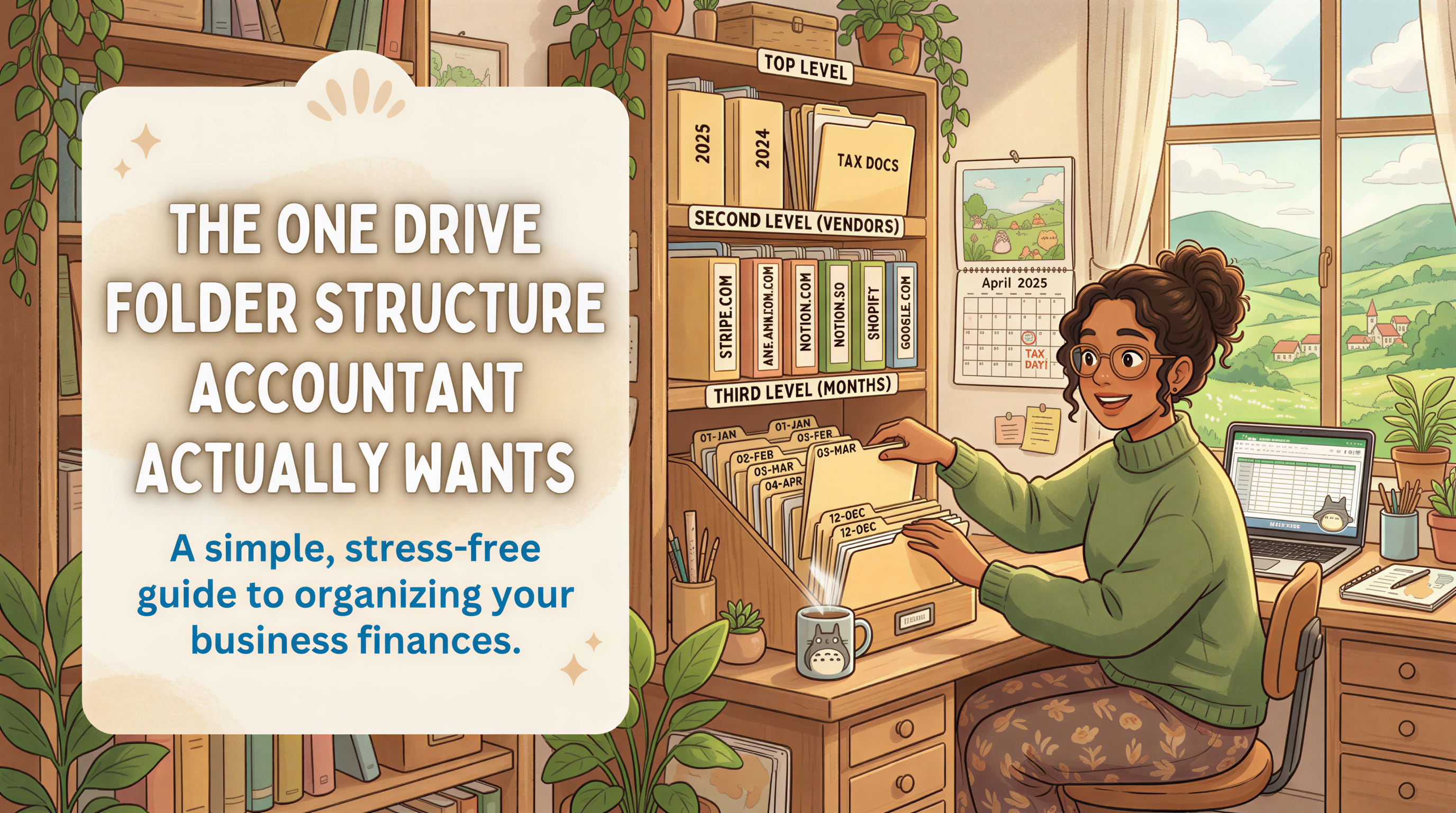
- Top level: tax year.
2025,2024,2023. Not "2025 taxes" or "TY2025" or "Tax Year 2025." Just the year. Sortable. Unambiguous. - Second level: by vendor. One folder per vendor. Vendor name as the folder.
stripe.com,aws.amazon.com,notion.so. Or if the firm prefers, the human-readable vendor name. Either works as long as it's consistent. - Third level: by month.
01,02,03. Two-digit so they sort correctly.1,2,3won't sort right and will annoy your CPA on principle. - Files inside. Original PDFs, ideally with the date in the filename so they're sortable inside the folder.
That's the whole structure. Three levels deep. No "Income vs Expenses" split. No category tags. No spreadsheet alongside.
Why so flat? Because the CPA's actual job - cross-referencing categories to vendors - is something they do in their software, not in your folder. They don't need you to pre-categorize. They need you to surface the documents in a way they can scan.

Why vendor-grouping wins
You might think "expenses by category" makes more sense. Software, travel, meals, etc. It does, in your head. But the CPA doesn't think in your categories. They think in their chart of accounts.
Your "software" might be their "Cost of Goods Sold" if your business uses the SaaS tools to deliver services. Or it might be "G&A Software." It depends on the entity type, what you do, and how aggressive the CPA is. Pre-categorizing gets in their way.
Vendor groupings, on the other hand, are universal. Stripe is Stripe. AWS is AWS. The CPA opens the aws.amazon.com folder, sees 12 monthly invoices, sums them, drops the total into whatever line on the return matches their categorization scheme.
There's also an audit angle. If the IRS asks "show me the AWS expenses for 2024," you need to be able to produce them, not by remembering which category you tagged them under, but by walking to the vendor folder. The IRS audits by vendor, not by your category labels.

The structure most freelancers actually have
Let's be honest about the starting point.
Most solo founders have one of these three setups, and none of them are what their accountant wants:
Setup 1: The graveyard folder.
Setup 2: The aspirational year folder.
Setup 3: The one that started organized and got abandoned.
Setup 3 is the most common. Started with good intentions. Maintained for 2 months. Quietly abandoned by April.

The structure that wins
Here is what your accountant actually wants:
Three levels. Year, vendor, month. Files dated inside. Done.
Your CPA opens 2024/stripe.com/, sees twelve subfolders, knows there should be twelve months of receipts. If 04 is missing, they ask. Quick check.
Open 2024/aws.amazon.com/04/, see one PDF, know that's April's AWS bill. If there are two PDFs, one is probably a usage report and one is the invoice. The CPA can tell at a glance.
This is not a clever structure. It's a structure that survives contact with reality.

What AutoFileEmail produces
We built our filing engine around exactly this structure because, when we asked CPAs the same question, this is what they kept describing.
The folder pattern is /AutoFileEmail/{vendor-domain}/{YYYY}/{MM}/. So the actual layout in your Drive looks like:
Notice: vendor is the second level (instead of year first). For a solo founder filing one set of taxes a year, this is functionally identical for the CPA - they sort by year inside each vendor folder. But it has one nice property: the vendor list is visible at a glance from the top, which makes it easier to spot "wait, why is there a random-saas.com folder, did I sign up for that?"
If your CPA strongly prefers year-first, the same files can be reorganized in 5 minutes with a Drive script or by drag-drop. The hard part - getting the receipts into folders at all - is the part you don't have to do. The structural shuffle is trivial once the data is in.

The cross-reference moment
Here is what your CPA is actually doing when they open your folder.
They have a chart of accounts. It looks like:
- Software & subscriptions
- Cloud hosting
- Professional services
- Travel
- Meals
- Office supplies
- Marketing & advertising
- Bank fees
- Etc.
They're going to sum your receipts into those buckets.
When the folder is per-vendor, the cross-reference is fast:
stripe.com/-> Bank fees (or fee revenue offset, depending)aws.amazon.com/-> Cloud hostingnotion.so/,linear.app/,figma.com/,cursor.so/-> Software & subscriptionsdelta.com/,marriott.com/-> Traveldoordash.com/,ubereats.com/-> Meals (with caveats)legalzoom.com/,gusto.com/-> Professional services
Five minutes, the CPA has a category total. Versus 45 minutes opening 200 files in a flat folder to figure out which vendor each one came from.
That 40-minute delta is what you're paying for when you pay your CPA hourly. Or what you're forcing them to eat if you have a flat-rate engagement, which they remember next year when they quote you.
When the structure breaks down
A few honest edge cases.
Vendors with subdomains. noreply@billing.stripe.com and notifications@stripe.com are the same vendor. AutoFileEmail collapses both to stripe.com so the folder count stays sane. If you build this manually, do the same thing.
Receipts with no PDF. Some vendors send receipts as inline HTML in the email body. We don't catch those today (no attachment to file). For those, your options are: forward to a dedicated label and screenshot to PDF later, or pester the vendor to email actual PDFs.
Joint personal and business. If you use one Gmail for both, expect a personal-vendor.com folder mixed in with the business ones. Worth setting up a rule (or a separate inbox) before you backfill years of data and discover your Netflix receipts in your tax folder.
Vendors that change names. AWS sends from amazon.com. Apple sends from apple.com. Google sends from a few subdomains, all collapsing to google.com. If a vendor rebrands (Twitter to X, Receipt Bank to Dext) the folder name will reflect whichever domain they used. Your CPA can handle this; they've seen worse.
What your CPA does NOT want
Things to skip:
- A spreadsheet alongside the folder, especially one you made the night before. Your categorizations will be wrong (per the chart of accounts they actually use). They will ignore the spreadsheet.
- Every receipt in one giant folder, even if it's named neatly.
- Sub-folders by category ("Software", "Travel"). Useful for you, in your way. Not useful for the CPA.
- Annotated PDFs with your handwritten notes. Pristine originals are what survives an audit.
- A Hubdoc dashboard login. They have their own software. They don't want yours.
If you've been paying for Hubdoc or Dext and your CPA still asks for a folder anyway, that's the signal that the OCR was for somebody else.
How to get there from here
If you're starting from a graveyard folder, two paths:
Path 1: Manually. Pick a free Saturday. Sort by sender. Drag files into vendor folders. Sort by date. Drag into month folders. It will take 4-8 hours per tax year. Doable for a single year if you're organized.
Path 2: Automatically. Connect Gmail and Drive to AutoFileEmail. Forward filing handles the future. The Backfill Pack ($29 for one tax year, $59 for three years, $99 lifetime) walks the inbox and produces this exact structure for years past. The 3-Year Pack typically catches what an audit letter asks for. (Detailed walkthrough: backfill 3 years in an afternoon.)
Either way, the destination is the same. The folder structure is the deliverable.
The bottom line
Your accountant doesn't want OCR. They don't want a dashboard. They don't want your spreadsheet.
They want a Drive folder, organized by year, then by vendor, then by month, with the original PDFs inside. That's it.
You can build that folder by hand once a year, hating it. Or you can wire up auto-filing and have the folder maintain itself.
If you're a freelancer, the tax-time workflow is built around exactly this. Connect Gmail, get the folder structure, hand it to your CPA. Free for one inbox. The folder is yours forever, even if you cancel.
Try it. Worst case you save your accountant 40 minutes and yourself a passive-aggressive email.
The last time you'll dread tax season.
Connect Gmail and Drive, watch the 30-day preview file itself, and never think about new email attachments again. Forward filing is free, forever. When tax season comes, grab a Backfill Pack and we'll sweep the rest of your history.