Auto-File PDFs From Email Into Drive Folders
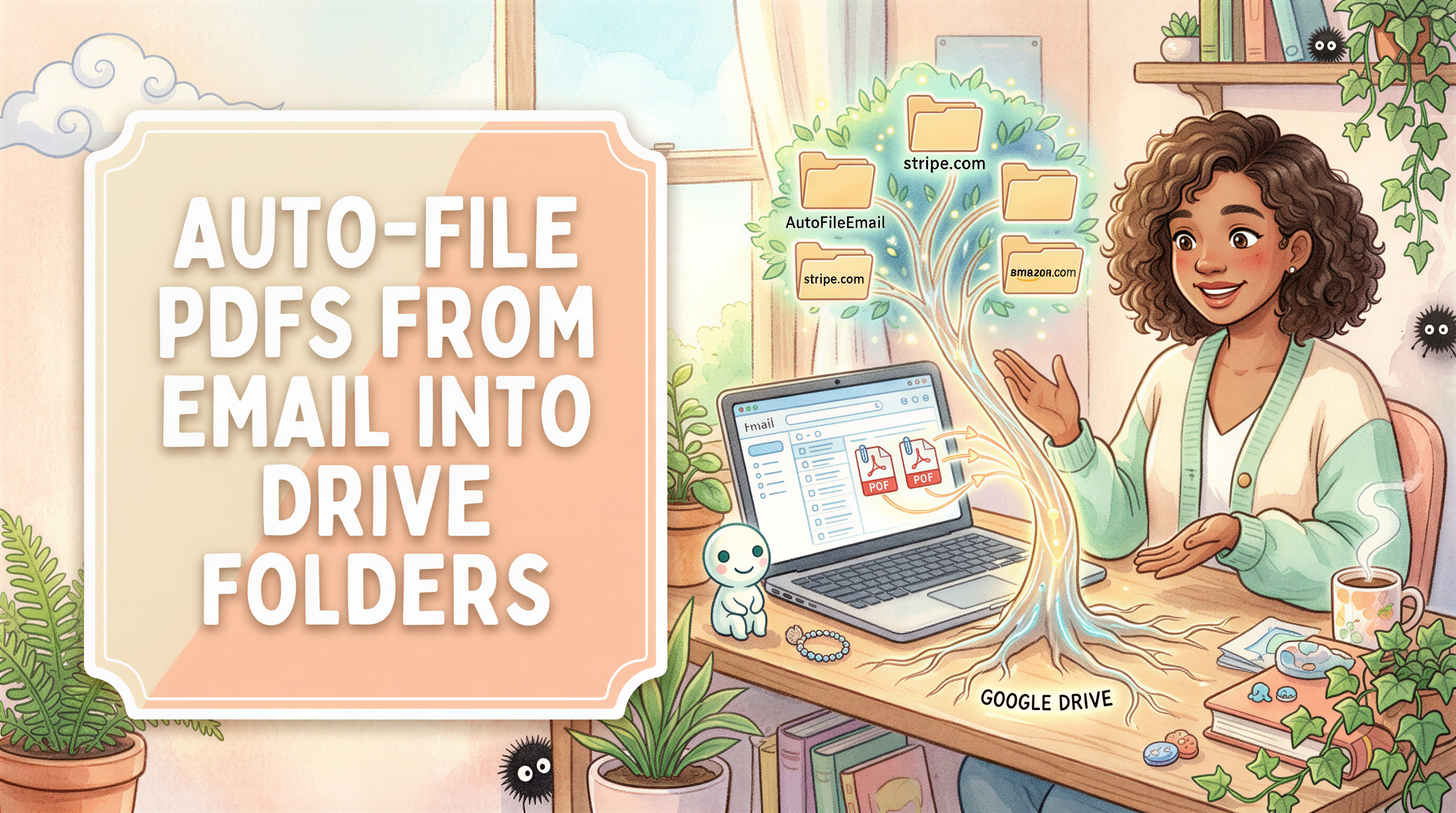
Here's the workflow you do today, probably without thinking about it:
- Email arrives with a PDF attached.
- You open the email.
- You click the attachment thumbnail.
- The PDF previews. You click "download" or right-click "save as."
- You alt-tab to Drive.
- You navigate into
Drive/Receipts/2026/Stripe/. - You drag the PDF in.
- You realize it's named
invoice.pdflike every other Stripe invoice. - You rename it to
2026-04-stripe-payout.pdf. - You go back to Gmail. Repeat for the next email.
Multiply by every receipt you get. That's the manual flow.
Most attempts to automate it solve about 60% of the problem and stop. This post walks through what actually works, what doesn't, and why.
Table of Contents
- What you actually want
- Gmail filters: nope
- "Save to Drive" button: half a solution
- Zapier: works for one folder at a time
- Domain-based auto-filing: the missing approach
- Setup walkthrough
- When the other tools are still right
- The bottom line
What you actually want
Before evaluating tools, here's the spec the tool needs to satisfy:
- New email with PDF attachment arrives.
- PDF is saved to Drive (not stored elsewhere).
- The folder is determined by who sent the email, not by hand.
- The folder structure scales: a new vendor doesn't require new setup.
- Filename includes enough metadata to disambiguate (date, sender) since most senders use generic filenames like
invoice.pdf.
That's the spec. Let's see what hits it.

Gmail filters: nope
Gmail filters can label, archive, mark as read, forward, and skip the inbox. They cannot:
- Download attachments
- Save attachments to Drive
- Create Drive folders
This is documented behavior, not a missing feature. Filters operate on email metadata and don't have side effects outside Gmail.
You can use a filter as input to other tools (Zapier triggers can listen for a label), but the filing step has to happen elsewhere.
Verdict: filters are a useful prefilter. Not a filing solution.
(blank line)

"Save to Drive" button: half a solution
Hover over an attachment in Gmail. A Drive icon appears. Click it. The PDF saves to your Drive root.
Two problems:
- It's manual. You have to open every email and click the button. Solves zero of the workflow.
- It saves to
My Driveby default. No folder structure. No sender-based organization. Your Drive becomes a swamp ofinvoice.pdf,invoice (1).pdf,invoice (2).pdf.
You can move them around manually after the fact. But then you're sorting files by hand, which is the original problem with extra steps.
Verdict: works for one-off "I want this PDF in Drive right now." Useless as a system.
(blank line)

Zapier: works for one folder at a time
Zapier has a Gmail trigger called "New Attachment." It fires when an email with an attachment arrives. You can chain it to a Drive action called "Upload File" that saves the attachment to a Drive folder.
The catch: each Zap targets one folder.
If you want Stripe attachments in Drive/Receipts/Stripe/, you build a Zap with the trigger filter set to from:stripe.com and the action target set to that folder.
If you want AWS attachments in Drive/Receipts/AWS/, you build a second Zap with from:amazon.com and the AWS folder.
If you want Adobe attachments in Drive/Receipts/Adobe/, third Zap.
You see where this goes. A solo founder with 25 vendors needs 25 Zaps. Zapier's free plan caps at 5 Zaps and 100 tasks a month. The Starter plan ($19.99/mo) caps at 20 Zaps. The Professional plan ($49/mo) is unlimited Zaps but charges per task.
Each PDF eats a task. 200 PDFs a year is 200 tasks. At Professional pricing that's a few cents per file just in tooling cost, before you account for your time setting up 25 separate Zaps.
There's also no built-in concept of "the folder name should be the sender domain." You hardcode each folder. New vendors that aren't in your Zap library don't get filed. You only find out months later when you go looking.
Verdict: works if you have a small, stable vendor list and don't mind paying $20 to $49 a month. Doesn't work for the actual freelancer use case.
(blank line)

Domain-based auto-filing: the missing approach
The thing none of the above tools do natively: file by sender domain, no per-vendor configuration.
The approach is straightforward:
- New email arrives with attachment.
- Pull the sender email.
noreply@billing.stripe.com. - Extract the registrable domain (eTLD+1). Result:
stripe.com. - Build the path:
/AutoFileEmail/stripe.com/2026/04/. - Save the attachment. Filename gets prefixed with the email date:
2026-04-14-invoice.pdf.
The eTLD+1 step is the trick. It collapses subdomains so noreply@billing.stripe.com, support@stripe.com, and invoicing@stripe.com all map to the same stripe.com folder. Same for noreply@aws.amazon.com and bills@aws.amazon.com: both go to amazon.com.
We use the tldts library to do the domain extraction. It handles edge cases like .co.uk and .com.au correctly. Without that, you'd map vendor.co.uk to co.uk (wrong) instead of vendor.co.uk (right).
Concrete examples of what the filing engine does:
| From address | Folder |
|---|---|
noreply@billing.stripe.com | /AutoFileEmail/stripe.com/ |
bills@aws.amazon.com | /AutoFileEmail/amazon.com/ |
team@notion.so | /AutoFileEmail/notion.so/ |
receipts@figma.com | /AutoFileEmail/figma.com/ |
noreply@adobe.com | /AutoFileEmail/adobe.com/ |
support@cursor.sh | /AutoFileEmail/cursor.sh/ |
info@noreply.github.com | /AutoFileEmail/github.com/ |
No vendor list to maintain. New senders get folders automatically.
This is what AutoFileEmail does. It's not a generic automation builder; it's a single-purpose filing engine. The integration list is at /integrations and the Gmail-to-Drive flow specifically is at /integrations/gmail-drive.
(blank line)
Setup walkthrough
- Sign up at autofile.email with Google.
- Approve Drive access (
drive.filescope, the narrowest one Google offers). - Approve Gmail access (read-only).
- Done. New attachments file within 30 seconds of arriving.
A 30-day historical preview runs on signup so you see real results immediately. If you want older history filed too, Backfill Packs start at $29 for one tax year.
The full Gmail-to-Drive setup walkthrough including troubleshooting is in the auto-filing guide.
When the other tools are still right
Zapier, IFTTT, Apps Script, Power Automate: they're the right call when:
- You have one specific filing rule and won't add more.
- You need cross-app logic beyond just Drive (post to Slack, log to a sheet, ping an API).
- You enjoy building automation as a hobby.
For "I just want my email PDFs in sensibly-organized Drive folders without thinking about it," AutoFileEmail is the path with the lowest setup time and zero ongoing maintenance.
The bottom line
Manual filing: works, until you have a real vendor count.
Gmail filters and "Save to Drive" button: don't actually solve the filing-to-structure problem.
Zapier, IFTTT, Power Automate: per-vendor configuration, monthly fees.
Apps Script: free if you can code and don't mind maintenance.
Domain-based auto-filing: configure once, every new vendor self-files. Free for one inbox at autofile.email. Connect in 30 seconds.
Try it. Worst case you save 12 hours next April.
The last time you'll dread tax season.
Connect Gmail and Drive, watch the 30-day preview file itself, and never think about new email attachments again. Forward filing is free, forever. When tax season comes, grab a Backfill Pack and we'll sweep the rest of your history.